

Typing is no longer a skill used only for office work. Students write assignments, families communicate across countries, teachers manage digital classrooms, and professionals complete daily tasks through a keyboard. Free online multilingual typing practice helps every learner build the speed, accuracy, and confidence needed to take part in that digital world without being limited to English.
Structured lessons make the learning process easier. Instead of looking for random words to type, learners can begin with basic key positions, develop muscle memory, and progress toward complete sentences and more challenging exercises. They can also see their typing speed and accuracy after each lesson, helping them understand what is improving and what still needs attention.
The experience works directly in a modern browser, so there is no software to install. A learner can select a language, open a lesson, place their fingers on the keyboard, and begin. Guest practice offers a quick way to try the lessons, while an account can preserve progress across sessions and devices.
Multilingual Typing Practice
Multilingual typing practice teaches people to use a physical keyboard accurately in the language they read, study, or use at home. This matters because knowing where English letters appear does not automatically prepare someone to type Cyrillic, Arabic-based scripts, accented Latin characters, or a different regional keyboard layout.
A well-designed multilingual course treats each language as a complete learning experience. It should present the correct characters, punctuation, direction, and keyboard layout instead of translating an English exercise word for word. Learners can then develop useful muscle memory for the language they actually use.
Practice may be available in languages such as English, Russian, Persian, Pashto, Dari, Spanish, French, Arabic, Portuguese, and German. Some languages use left-to-right text, while Persian, Pashto, Dari, and Arabic use right-to-left scripts. The learning interface should respect those differences so that text, punctuation, cursor movement, and on-screen guidance feel natural.
The technical treatment of direction is important as well. The W3C guidance for right-to-left text explains that correct base direction helps browsers display bidirectional text and punctuation properly. For learners, that technical detail produces a much simpler result: the practice text behaves the way their language is supposed to behave.
Why Practicing in Your Own Language Matters
Typing is learned through repetition, and repetition is more meaningful when the text is familiar. A student who reads Persian at home, for example, may be able to understand an English typing exercise but still need dedicated Persian practice to learn the native keyboard layout. The same is true for Russian, Arabic, Pashto, Dari, and other languages with distinct scripts or layouts.
Native-language practice reduces the mental effort required to translate while typing. It allows the learner to focus on finger movement, character location, rhythm, and accuracy. It can also help preserve language use in digital settings by making it easier to write schoolwork, messages, stories, and documents in that language.
How Multilingual Lessons Build Keyboard Confidence
Confidence develops when lessons introduce difficulty gradually. Early exercises may focus on two or three home-row keys. Later lessons add new characters, capital letters, punctuation, common words, and longer passages. Each stage reinforces earlier movements before asking the learner to manage something more complex.
This sequence is especially valuable when switching between languages. Instead of assuming that an experienced English typist already understands another layout, the course lets that person rebuild accurate habits for the second language. Over time, the learner becomes comfortable changing layouts without constantly looking down at the keyboard.
How Online Typing Practice Works
Online lessons turn a standard browser and physical keyboard into a guided learning environment. The screen presents a character, word, or passage, and the learner types what appears. Immediate feedback identifies the next key, records mistakes, and shows results after the exercise.
The goal is not to type as quickly as possible on the first day. The goal is to develop correct movements that can later become fast and automatic. A consistent process keeps practice manageable and makes improvement easier to measure.
Choose Your Language and Learning Role
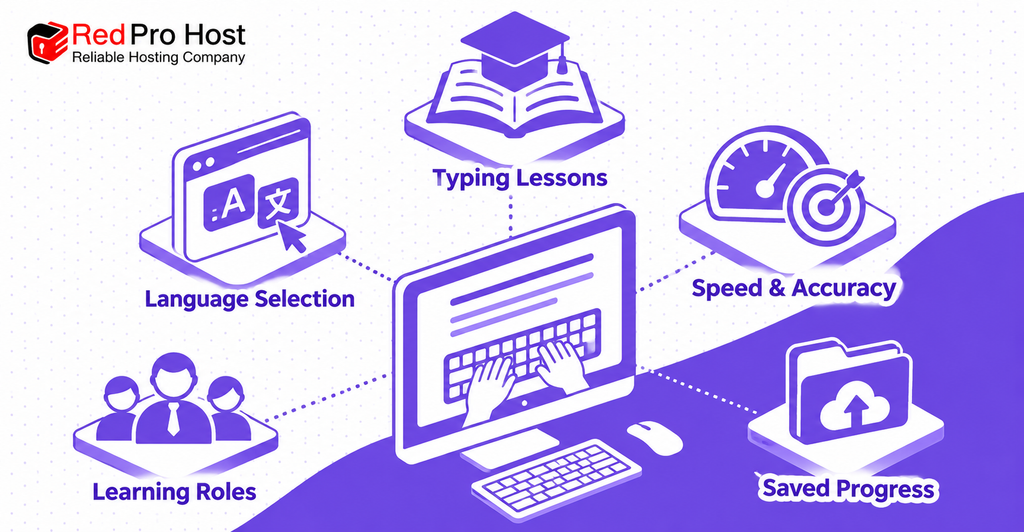
Begin by selecting the language you want to practice. The practice language may be different from the language used for menus and instructions. Someone might prefer an English interface while learning to type in Arabic, or use a Persian interface while practicing English. Keeping those choices separate gives multilingual learners more control.
The next step is choosing how the platform will be used. Independent learners can start lessons for themselves. Students may join a class or complete assigned exercises. Parents can follow a child’s activity, while teachers can organize classes and review results. Schools may need broader tools for managing staff, learners, assignments, and reports.
Follow Structured Typing Lessons
Structured lessons remove the guesswork from practice. A beginner starts with key placement and simple combinations instead of being dropped into a long paragraph. As accuracy improves, the lesson sequence introduces more keys, common letter patterns, words, punctuation, numbers, and realistic text.
An on-screen keyboard can show where a key is located and which finger should press it. That visual support is useful at the beginning, but learners should gradually rely on touch rather than watching their hands. The long-term objective is to connect a character with a finger movement automatically.
Short, regular sessions are generally easier to sustain than occasional marathon sessions. Ten to twenty focused minutes can be enough for one practice period, especially for children and beginners. Stopping before fatigue affects posture or accuracy helps keep the experience positive.
Track Typing Speed and Accuracy
Results give practice a clear purpose. Words per minute, commonly shortened to WPM, estimate how quickly a learner types. Accuracy shows how much of the entered text was correct. Used together, these measurements provide a more useful picture than speed alone.
A learner who reaches a high WPM by making frequent mistakes has not yet developed dependable control. It is usually better to slow down, improve accuracy, and allow speed to rise naturally. Lesson history can reveal whether performance is becoming more consistent rather than changing randomly from one attempt to the next.
Progress tools may also show completed lessons, stars, practice time, streaks, difficult keys, or recent activity. These details help learners set specific goals, such as maintaining accurate typing while introducing a new row of keys.
Save Progress or Manage Learners
Guest access is useful for starting quickly, but a free account makes long-term practice easier to manage. Saved progress lets a learner return to the next suitable lesson, review earlier results, and continue from another supported device. It also prevents repeated sessions from feeling disconnected.
Accounts become more important when an adult supports another learner. A parent can view a child’s progress without standing over every practice session. A teacher can assign work, identify students who need help, and compare completion across a class. The purpose of these tools is not constant surveillance; it is to provide enough information for timely encouragement and support.
Free Typing Lessons for Students and Families
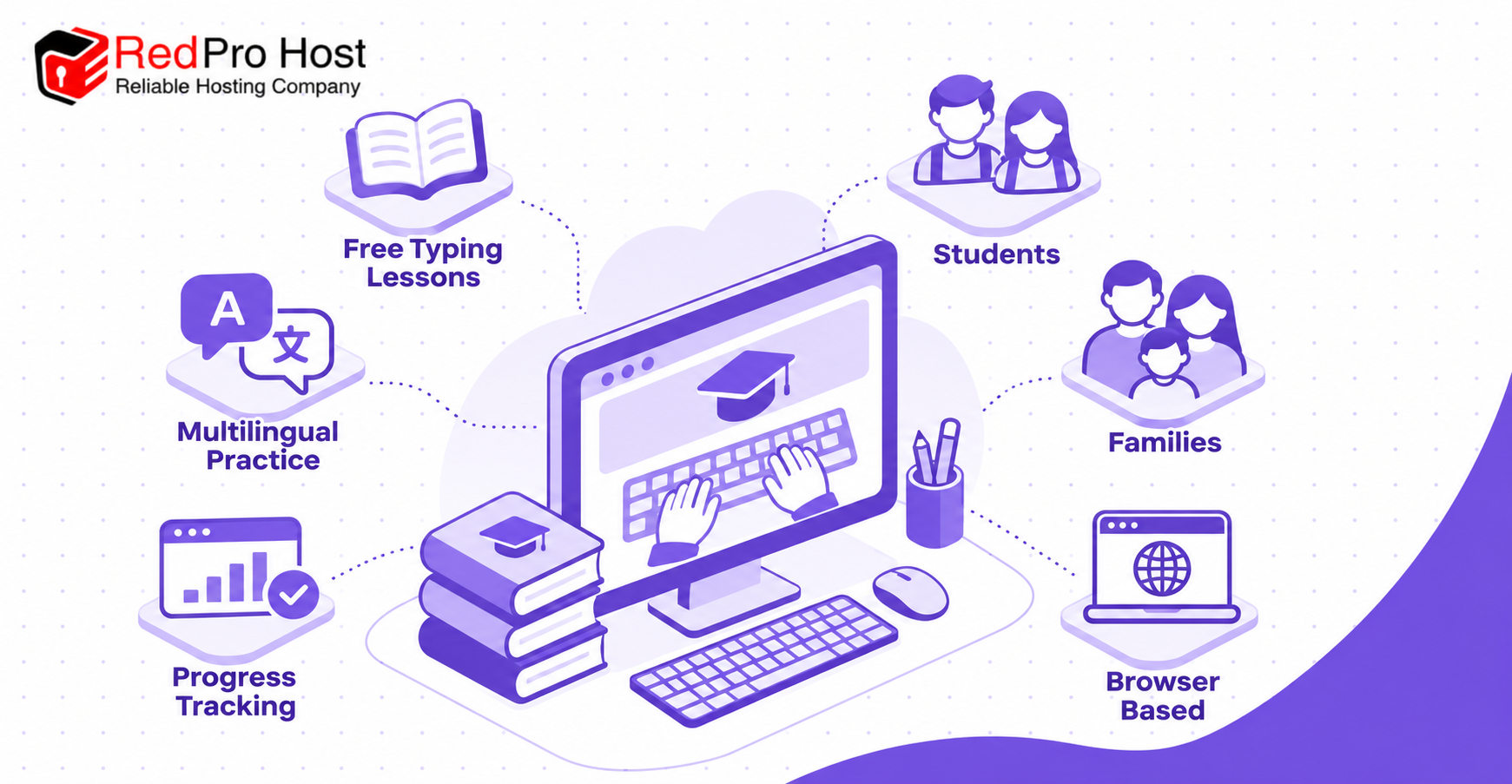
Free access makes typing education available to learners who may not have specialized software or a school subscription. Students can practice foundational keyboard skills, improve schoolwork efficiency, and become more comfortable with online learning. Family members can use the same resource at different levels and in different languages.
Before beginning, users should check what the free plan includes. Core lessons, language access, basic results, and progress saving may be available without payment, while optional plans may provide additional reporting, convenience features, or an ad-free experience. Clear pricing information helps families choose without interrupting the learning process.
Benefits for Students
Students often type under pressure: they write essays, answer timed questions, search for information, and communicate through learning portals. When key location becomes automatic, more attention remains available for ideas, spelling, structure, and problem-solving.
Typing practice can also make digital assignments less frustrating. A learner who uses two fingers and searches for every key may understand the subject but struggle to express that knowledge efficiently. Building touch-typing habits helps reduce that gap between knowing an answer and entering it on a screen.
Multilingual lessons provide an additional benefit for students who study or communicate in more than one language. They can develop keyboard fluency in each language instead of treating their home language as an unsupported extra.
Benefits for Parents and Home Learning
Parents do not need to be typing experts to support a child. They can help create a suitable practice routine, confirm that the child is using a physical keyboard, and encourage careful technique. A quiet workspace, a comfortable chair, and short sessions are often more useful than demanding a particular speed.
Progress information can guide constructive conversations. Rather than asking only, “How fast did you type?” a parent can ask whether accuracy improved, which keys felt difficult, or what the child learned in the lesson. This keeps attention on steady growth instead of comparison with other learners.
For multilingual families, shared practice can also support language connection. Adults and children can type in a heritage language, learn its keyboard layout together, and use the skill in messages or creative writing outside the lesson.
Start Without Installing Software
Browser-based practice reduces setup. There is no large download, installation wizard, or device-specific application to manage. A learner opens the lesson page, chooses a language, and begins with a connected keyboard.
A desktop or laptop usually provides the best experience because touch typing depends on stable finger placement across a physical keyboard. A tablet can work when paired with an external keyboard. A phone screen may display lessons, but tapping a touchscreen does not teach the same movements as typing on physical keys.
Typing Tools for Teachers and Schools
Classroom typing practice requires more than a collection of exercises. Teachers need a way to organize learners, assign appropriate work, and see whether practice is being completed. School-level tools may add roster management, staff roles, reports, and administrative controls.
The best classroom system keeps routine tasks simple. Students should know where to begin, teachers should be able to find essential results quickly, and administrators should have access only to the information required for their role.
Create Classes and Add Students
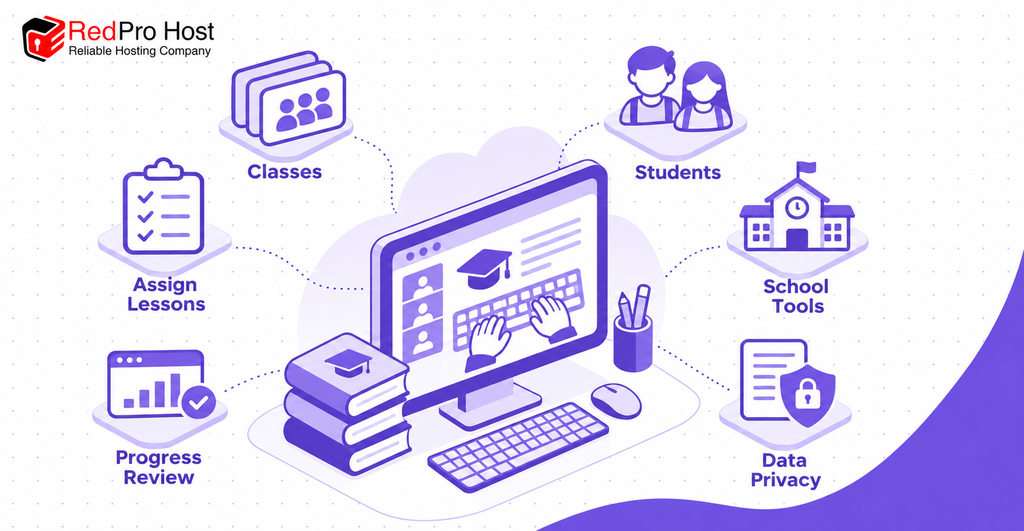
A class gives the teacher one place to organize students and activities. Depending on the available tools, learners may join with a code, use an existing account, or receive an account created by the school. Younger students may be able to use school-managed credentials without a personal email address.
Teachers should check names, roles, and class membership before assigning work. A clear roster prevents results from being recorded under the wrong account and makes end-of-term reporting more reliable. Schools should also establish a consistent process for students who join, leave, or move between classes.
Assign Lessons for Different Skill Levels
Students in the same class rarely type at the same level. Some are learning the home row, while others can type complete paragraphs but need better accuracy. Assignments should reflect those differences rather than forcing every learner through an identical exercise at the same pace.
A teacher can begin with a simple baseline activity, review the results, and assign suitable lesson groups. Beginners may need short key-focused exercises. Intermediate learners can work on words, punctuation, and rhythm. More advanced students may benefit from longer passages and accuracy goals.
Language can be differentiated as well. One student may practice English while another uses Persian, Arabic, Russian, or a different supported curriculum. Both can still participate in the same classroom routine.
Review Progress and Support Learners
A teacher dashboard should make important information easy to interpret. Lesson completion shows whether work was attempted. WPM and accuracy indicate performance. Practice time and recent activity can reveal whether a learner is working consistently or rushing through assignments.
Numbers should lead to support, not punishment. A sudden drop in performance might reflect an unfamiliar keyboard, an incorrect language layout, fatigue, poor posture, or difficulty with specific keys. Speaking with the learner often provides context that a chart cannot show.
Teachers can use results to celebrate improvement, recommend review exercises, and adjust future assignments. A small increase in accuracy may represent meaningful progress even when speed remains unchanged.
Protect Student Information
Schools should understand what information a typing service collects, why it is needed, how long it is retained, and who can access it. Student accounts should request only the information necessary to deliver lessons, save results, and support classroom administration.
Administrators should review privacy terms, security practices, account-deletion procedures, and any regional or institutional requirements before onboarding learners. Staff access should follow clear roles so that teachers see their classes while broader administrative permissions remain limited to authorized personnel.
Learn to Type in Your Language
Learning in a familiar language can turn keyboard practice from a technical task into a useful everyday skill. The learner is not merely memorizing isolated characters; they are preparing to write messages, school assignments, forms, stories, and documents that matter to them.
Each language should have its own coherent curriculum. Good lessons use appropriate characters and common patterns, respect punctuation and direction, and advance from basic keystrokes to practical text.
Left-to-Right Language Practice
English, Spanish, French, Portuguese, German, and Russian are displayed from left to right, though their scripts and keyboard layouts are not identical. English uses the basic Latin alphabet. Spanish, French, Portuguese, and German include accented letters or language-specific characters. Russian uses Cyrillic.
Learners should activate the correct operating-system keyboard layout before starting. The physical keycap may show one character while the selected software layout produces another, so an on-screen keyboard can be especially helpful during the transition.
Practice should include the characters that make each language distinct. Avoiding accents or special letters may make early exercises easier, but it does not prepare the learner for accurate real-world writing.
Right-to-Left Language Practice
Arabic, Persian, Pashto, and Dari require more than a mirrored page. Text direction, punctuation, cursor behavior, and mixed-script content must be handled correctly. Learners may type native-script words alongside numbers, email addresses, or Latin abbreviations, so the interface must remain understandable when directions interact.
The selected keyboard layout also matters because related languages may include different characters and key positions. A learner should confirm both the language and the specific keyboard layout used by their school, family, or region.
When the interface displays text correctly, learners can focus on technique rather than fighting visual errors. This is one reason native right-to-left support is a meaningful feature, not merely a cosmetic change.
Switching Between Keyboard Languages
Multilingual users often switch layouts during the day. The operating system usually provides a keyboard shortcut or language selector for this purpose. Learners should identify the active layout before starting a lesson, particularly when the same physical keys produce different characters.
At first, layout switching can feel slow. It becomes easier when each language is practiced regularly and the learner avoids mixing layouts within a single basic exercise. Separate, focused sessions help the brain associate each script with its own set of finger movements.
Accessible Typing Practice
Typing education should be usable by learners with different visual, motor, cognitive, and technological needs. Accessibility begins with keyboard operation, readable contrast, clear focus indicators, meaningful instructions, and compatibility with assistive technologies.
It also requires flexibility. Learners benefit when they can adjust the visual theme, understand errors without relying on color alone, navigate without a mouse, and receive feedback that does not disappear too quickly.
Keyboard Navigation and Visible Focus
A typing platform should allow users to reach menus, language choices, lesson controls, and account features by keyboard. A visible focus indicator shows which element will respond when Enter or Space is pressed. Without that indicator, keyboard-only navigation becomes a guessing exercise.
Shortcuts used during a lesson should not interfere with assistive-technology commands or operating-system language switching. Instructions should explain any special controls before the lesson begins.
Screen Readers and Clear Instructions
Buttons and form fields need meaningful accessible names so screen-reader users can understand their purpose. Headings should follow a logical order, status messages should be announced appropriately, and images used for instruction need useful text alternatives.
Typing exercises can present special challenges because the application responds to individual keystrokes. Designers should test real lesson flows with screen readers rather than assuming that a technically labeled page is fully usable.
Contrast, Themes, and Reduced Distraction
Readable text requires sufficient contrast against its background. High-contrast or dark themes can help some learners, but no single theme works for everyone. Controls should remain clear in each option, and correct or incorrect characters should never be distinguished by color alone.
A focused lesson view can reduce distraction by keeping advertisements, animations, and unrelated controls away from the practice text and on-screen keyboard. This benefits learners with attention difficulties as well as anyone trying to build a steady rhythm.
How to Improve Typing Speed and Accuracy
Improvement comes from correct repetition, not hurried repetition. Learners should first establish posture and finger placement, then practice at a pace they can control. Speed grows as the movements become more reliable.
The following habits help turn practice results into practical keyboard fluency.
Prioritize Accuracy Before Speed
Trying to set a speed record in every lesson encourages tension and guessing. A better approach is to choose a comfortable pace and aim for clean, consistent input. When accuracy remains stable, the learner can increase speed gradually.
Mistakes are useful signals. If the same pair of keys is repeatedly confused, targeted practice is more productive than repeating an entire long passage. Difficult-key reports can help identify those patterns.
Use Proper Finger Placement
Touch typing normally begins with the fingers resting on the home row. Each finger is responsible for a group of nearby keys, reducing unnecessary hand movement. After pressing another key, the finger returns toward its resting position.
The exact position varies with the keyboard layout, but the principle remains consistent: use predictable finger movements instead of reaching with whichever finger feels convenient. Correct habits may feel slower at first, yet they provide a stronger foundation for later speed.
Look at the Screen Instead of the Keyboard
Looking down interrupts rhythm and prevents the learner from building a mental map of the keys. An on-screen guide can provide support while the hands remain in position. Over time, the learner should need that guide less often.
Covering the hands is not necessary for everyone and can cause frustration for beginners. A gradual approach works well: practice a small group of known keys without looking, then add new keys as confidence improves.
Practice Consistently and Rest When Needed
Regular practice helps the brain retain finger patterns. A short session on several days of the week is generally more effective than one long session followed by a lengthy break. Consistency also makes progress data easier to interpret.
Stop when the hands, wrists, shoulders, or eyes feel strained. Good posture and relaxed movement matter more than completing an extra lesson. Persistent pain should not be treated as a normal part of learning to type.
Conclusion
Free online multilingual typing practice makes a fundamental digital skill more inclusive. It allows learners to build keyboard fluency in the languages they actually use, including both left-to-right and right-to-left scripts. Structured lessons, immediate feedback, progress tracking, and classroom tools can support independent learners, families, teachers, and schools at every stage.
The most effective path is straightforward: select the correct language and keyboard layout, begin with foundational lessons, prioritize accuracy, and practice consistently. With time, deliberate keystrokes become automatic movements, making it easier to study, work, create, and communicate in a multilingual world.
Frequently Asked Questions
These answers address common questions from learners, parents, and educators who are considering free multilingual typing practice.
Is Online Typing Practice Free?
Core lessons and basic practice can be available at no cost, allowing learners to begin without purchasing software. Optional paid plans may add advanced reports, convenience features, or an ad-free experience. Review the current plan details before creating school-wide expectations.
Can I Start Without Creating an Account?
Guest lessons can allow immediate practice without registration. An account is usually needed to preserve lesson history, continue across devices, join a managed class, receive assignments, or let a parent or teacher review progress.
Which Languages Can I Practice?
Available curricula may include English, Russian, Persian, Pashto, Dari, Spanish, French, Arabic, Portuguese, and German. Check the active language list because supported curricula may expand over time, and some announced languages may still be under development.
Does It Support Right-to-Left Languages?
Right-to-left practice can support languages such as Arabic, Persian, Pashto, and Dari when the lessons use the correct script, keyboard layout, base direction, punctuation behavior, and interface alignment. Learners should select the appropriate operating-system keyboard before starting.
Can Teachers Assign Lessons and Track Progress?
Teacher tools can provide class organization, assignments, completion records, WPM, accuracy, and activity history. The exact features may depend on the account or school plan. Teachers should use results to guide instruction and investigate difficulties rather than judging learners by speed alone.
What Device Is Best for Touch-Typing Practice?
A desktop or laptop with a physical keyboard provides the most suitable setup. A tablet with an external keyboard can also work well. Typing on a phone touchscreen does not reproduce the finger placement or movement used for physical-keyboard touch typing.
How Are Typing Speed and Accuracy Measured?
Typing speed is commonly reported in words per minute, while accuracy represents the proportion of entered text that was correct. Calculation methods can vary slightly between services, so learners should compare their own trend over time rather than treating small differences between tools as exact comparisons.
How Long Should a Beginner Practice Each Day?
Ten to twenty minutes of focused practice is a reasonable starting point for many beginners. Younger learners may benefit from even shorter sessions. Quality matters more than duration, so a session should end when concentration drops or physical tension appears.
Start Multilingual Typing Practice Today
A learner does not need perfect technique or a high starting speed. The first step is simply to choose the right language and complete a manageable beginner lesson. Careful repetition will make the keyboard feel more familiar, and saved results can show progress that may be difficult to notice from one day to the next.
Start with accuracy, keep the hands relaxed, and practice often enough to preserve the movements you learn. If you support a child or student, focus on consistency and improvement instead of comparing scores. A calm routine creates better long-term habits than pressure to type fast immediately.